
You set a 15-minute App Limit on Instagram. The timer ends. You still open the app, tap past the warning, and look up an hour later. That is not a mysterious bug. Screen Time counted the minutes. Ignore Limit (or "ask for more time") did its job as an exit.
If you searched for Block at End of Limit, you want the free Apple path that turns a soft reminder into a real stop. This guide walks that setup, then the Safari hole, then what to do when you are the one who still unlocks the phone.
In short
- Turn on Screen Time and set a Screen Time passcode.
- Create App Limits and turn on Block at End of Limit.
- For bedtime or dinner, use Downtime with Block at Downtime.
- Close the Safari and Always Allowed loopholes.
- If you still override on purpose, you need open-time friction, not another timer.
Apple's own schedule guide notes that Screen Time limits can be ignored by default, and shows how to block apps during scheduled Downtime: Set schedules with Screen Time on iPhone.
Set a Screen Time passcode first
Without a passcode, changing limits and walking past blocks stays too easy.
- Open Settings.
- Open Screen Time.
- Tap Lock Screen Time Settings (wording can vary slightly by iOS version) and create a passcode you will remember.
- Prefer a code that is not your phone unlock code if the goal is to slow yourself down.
Apple documents the passcode flow here: Create a Screen Time passcode on iPhone.
Turn on Block at End of Limit
Path on current iPhone software:
- Settings → Screen Time.
- Under Limit Usage, tap App Limits.
- Tap Add Limit (or open an existing limit).
- Pick categories or individual apps you actually regret.
- Set the daily time.
- Turn on Block at End of Limit.
- Save the limit.
When that toggle is off, the limit often behaves like a nudge. When it is on, the app should stop opening freely after the time is used. You may still see a path that asks for the Screen Time passcode if you try to get more time. That is Apple's escape hatch, not a broken limit.
For the wider restriction tools (apps, downloads, websites, purchases), see Apple's guide: Block apps, app downloads, websites, and purchases on iPhone.
Add Block at Downtime for quiet hours
App Limits are a daily budget. Downtime is a calendar of hours when most apps should go quiet.
- Settings → Screen Time → Downtime.
- Schedule the hours you regret most (nights, mornings, dinner).
- Turn on Block at Downtime.
- Put Phone and Messages in Always Allowed if you need them. Do not park Instagram or TikTok there.
Apple covers Downtime and App Limits on the same schedules page: Set schedules with Screen Time on iPhone.
Close the other doors
A correct App Limit still fails if another path stays open:
- Safari: the app is limited, the site is not. Add the site under Content & Privacy → Web Content → Never Allow. Step-by-step: how to block Safari and websites on iPhone.
- Always Allowed: apps on that list stay available during Downtime. Keep it short.
- Reinstall: deleting feels strong until the App Store is still allowed.
- Focus: hiding an icon is not the same as blocking opens.
If limits still feel soft after this setup, read why Screen Time limits don't work and the Ignore Limit problem. Apple's built-in tools are strong for awareness and schedules. They are weaker as impulse brakes when you know the passcode. More on that in Does Apple have a built-in app blocker?.
When you still unlock yourself
If Block at End of Limit is on, Downtime blocks, Safari is closed, and you still enter the passcode for "15 more minutes," the timer already did what it can. You are fighting an open-time urge with a daily minute count.
That is the point where a different tool shape helps: friction when you open the app, not only when the day budget runs out.
Where Manaya fits
Manaya uses Apple's Screen Time / Family Controls shields on your iPhone. You put apps in protection groups, pick Easy, Medium, Hard, or Custom, and meet a Wait (or a fuller stop) before protected apps open. After a Wait, a short Open window lets you do the thing you opened for, then the shield can return.
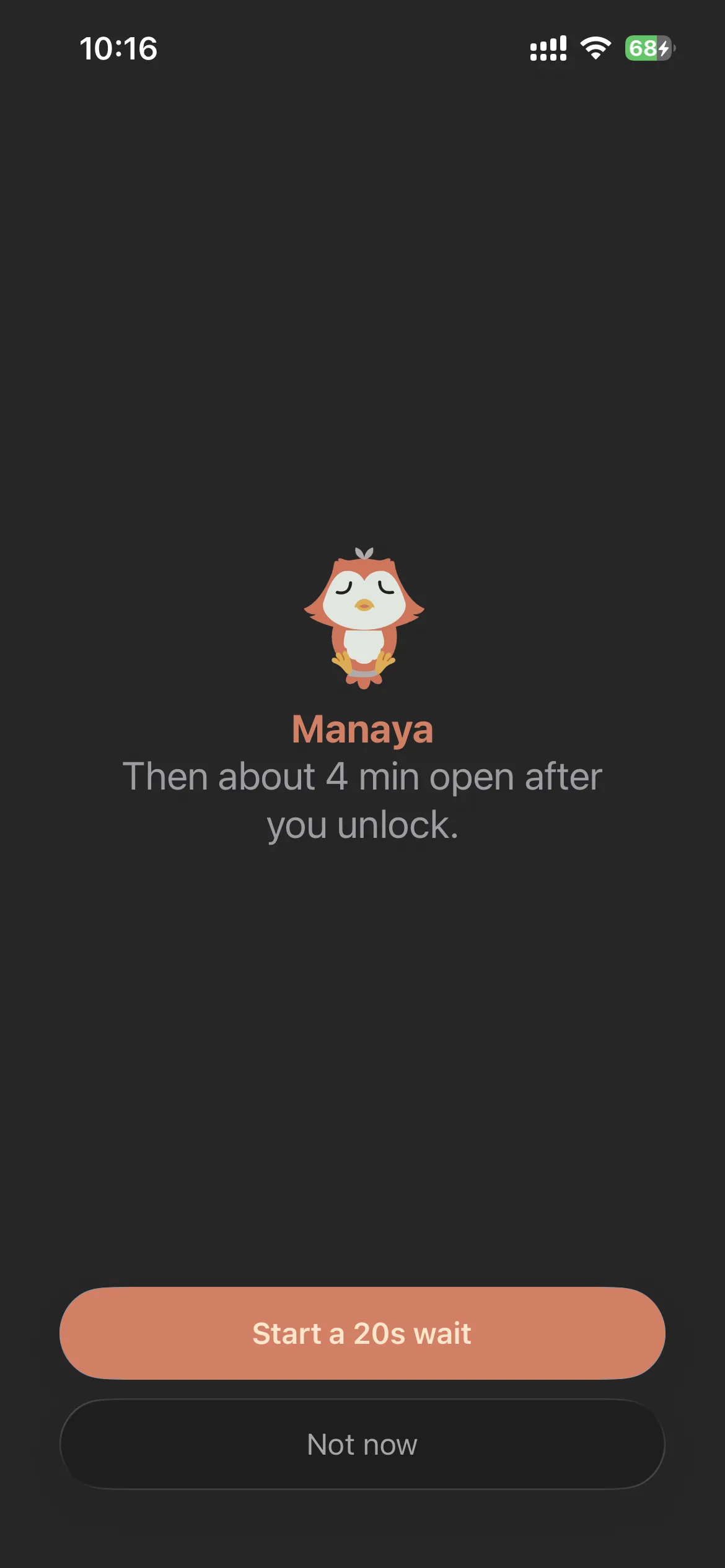
It is not a forever lock. You stay in control through iOS Settings. The job is to make the impulsive path hard enough that the urge can pass.
If the free Screen Time setup above already holds, stay with it. If you keep losing at the tap, see how Manaya works and the plan levels.