
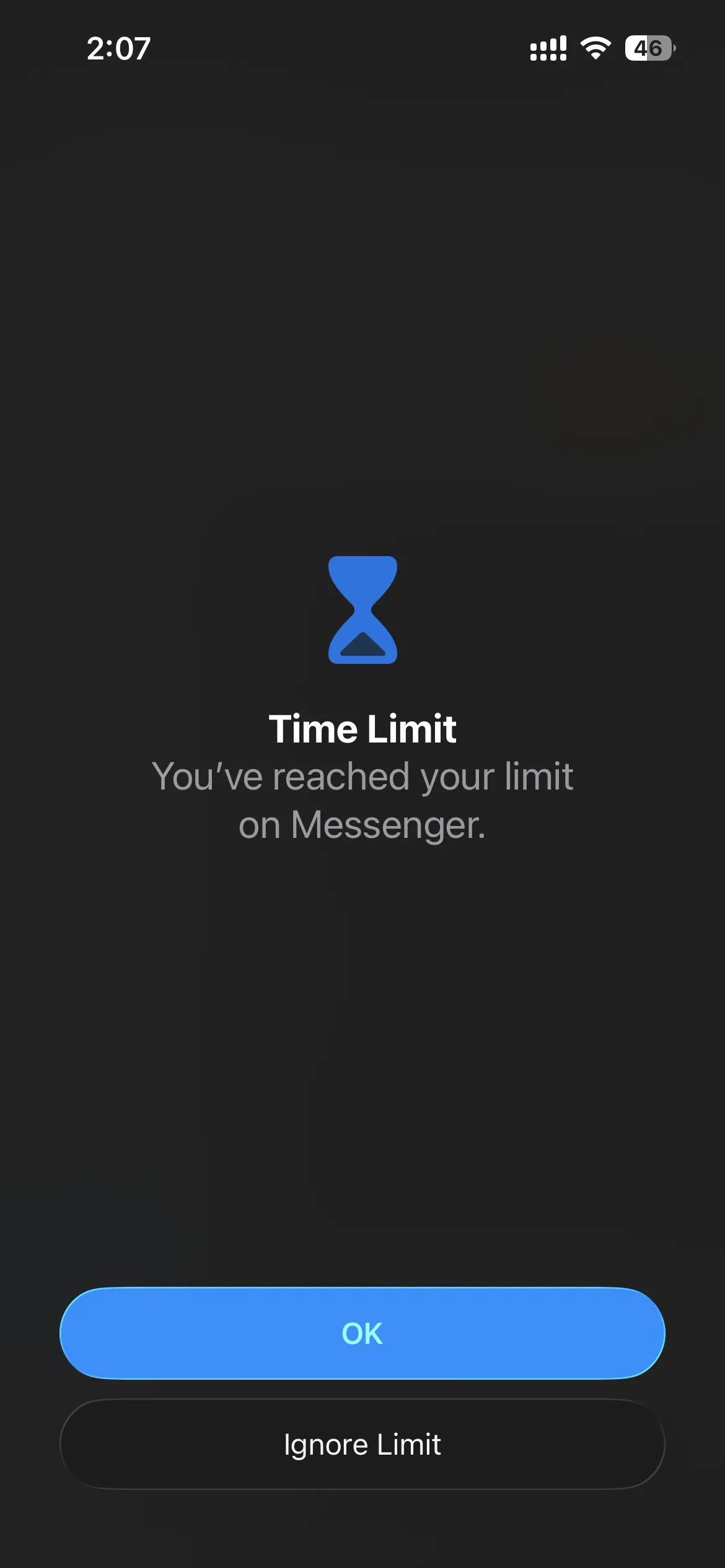
You set an App Limit on Instagram. The icon goes gray. Ten minutes later you are still in the feed, because you typed instagram.com in Safari.
That is not a mysterious bug. App Limits target the app. The website is a second door. If you came here searching how to block Safari or block websites on iPhone, you want that door closed without throwing away the browser for maps, docs, and everything else.
Apple already documents this under Screen Time. The steps below follow Apple's guide to block apps, app downloads, websites, and purchases on iPhone.
Why app limits are not enough
App Limits and Downtime are good at time budgets and quiet hours. They are weaker at "I will find another path into the same feed."
Common night:
- Limit hits on the social app.
- You open Safari (or another browser).
- You go straight to the site.
- The scroll continues.
Why Screen Time limits don't work covers Ignore Limit, reinstalls, and Always Allowed. This page owns the website hole.
Block specific sites with Screen Time
You do not need to remove Safari. You block the URLs that pull you in.
- Open Settings, then Screen Time.
- Tap Content & Privacy Restrictions, and turn Content & Privacy Restrictions on.
- Tap App Store, Media, Web, & Games, then tap Web Content.
- Choose Limit Adult Websites.
- Under Never Allow, tap Add Website.
- Enter the URL (for example
instagram.com,tiktok.com,youtube.com,reddit.com). - Repeat for each site you keep escaping into.
Use a Screen Time passcode if you are the one who turns restrictions off when the urge is loud. Apple's passcode is for locking the settings, not for shaming you.
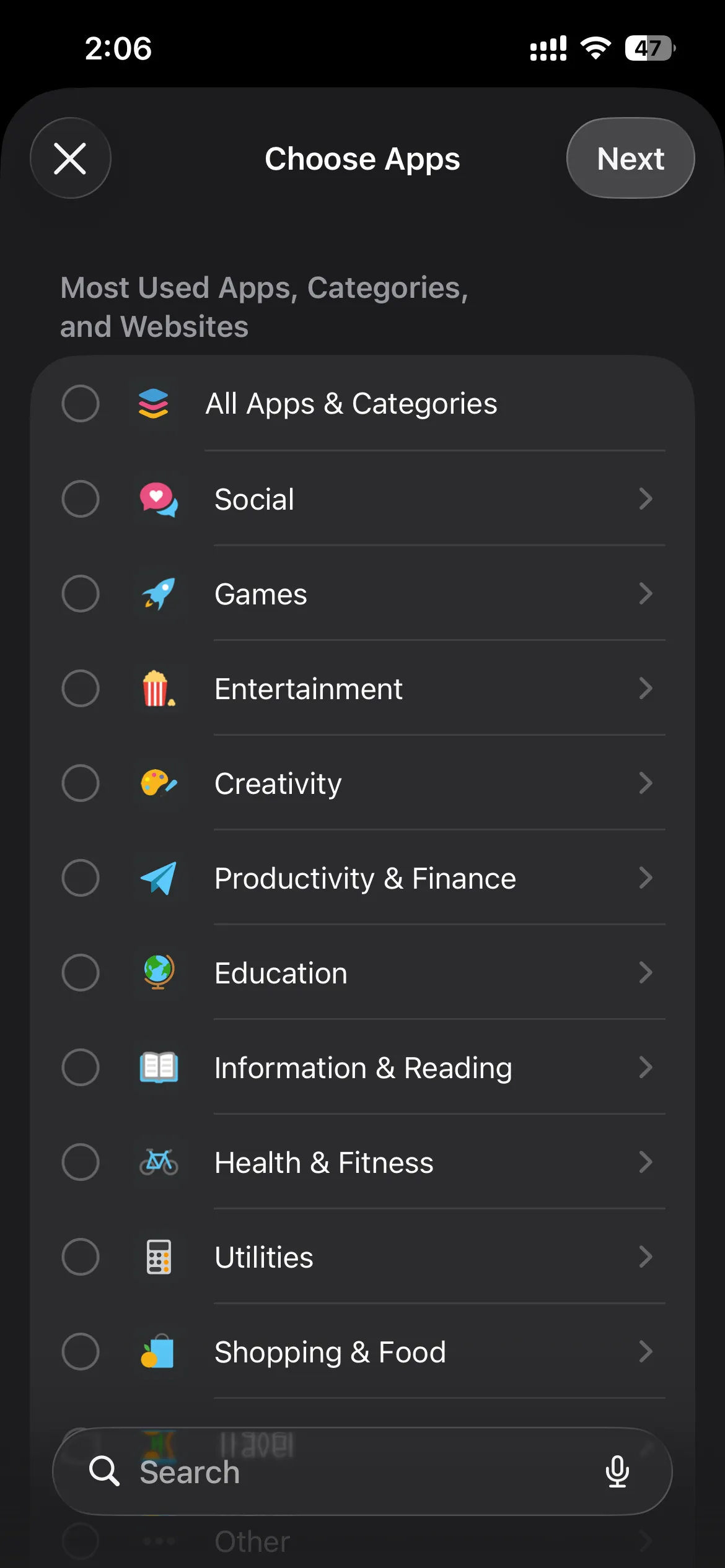
If you also want category time caps while you are in Screen Time, block apps by category walks App Limits and Downtime. That is a different job from Never Allow.
Limit Adult Websites vs Allowed Websites Only
Limit Adult Websites keeps normal browsing available and lets you add a Never Allow list for the sites you personally cannot leave alone. That is the right default for most adults who still need Safari for work and life.
Allowed Websites Only (when you need a hard allowlist) is closer to a locked-down kid or exam setup: only the sites you list can load. Use it when a short Never Allow list is not enough and you accept that every other site is blocked until you add it.
For "I keep opening Instagram in Safari," Never Allow on the specific hosts is usually enough.
Close related holes
Website blocks fix one escape. Check the others so you do not whack-a-mole:
- Ignore Limit: if the app still opens after a tap, read how to stop ignoring Screen Time limits.
- Reinstall: deleting the app feels strong until the App Store is still allowed. Under Content & Privacy Restrictions, tighten iTunes & App Store Purchases / installing apps if that is your pattern. Apple's same guide covers store purchase restrictions.
- Always Allowed: apps on that list stay available during Downtime. Do not park social there. Keep Phone and Messages if you need them.
- Built-in Safari off: you can hide Safari under Allowed Apps & Features. That is a blunt tool. Prefer Web Content when you still need a browser.
For a wider map of what Apple already ships, see Does Apple have a built-in app blocker?.
When open-time friction still helps
Web Content stops the Safari mirror of the feed. It does not stop you from unlocking restrictions, tapping Ignore Limit, or opening the app the second the limit resets.
If you still lose the evening after the websites are blocked, the missing piece is friction at open, before the scroll starts. Manaya uses Apple's shields on your iPhone with protection groups and a Wait (or stronger plan) when you reach for the sticky apps. You keep the app for a real reply. You do not get a one-tap Ignore Limit shaped like Screen Time's. You also do not get a fantasy forever lock. Settings still exist.
Teach the free method first. Reach for open-time friction when Never Allow is not the hole you are falling through anymore.