
Whether you are trying to cut down on doomscrolling during work hours or want to block gaming apps on a family iPhone, setting up automatic app blocking can be a game changer for productivity.
The good news is that iOS has built-in tools that allow you to block apps by category (like Social, Games, or Entertainment) and even set schedules for when those blocks apply.
In this guide, we will walk you through how to set up category blocking using Apple's free Screen Time tools, why those tools sometimes fall short, and how you can enforce strict, unbypassable schedules using a dedicated app blocker like Manaya.
How to block apps by category using Apple Screen Time
If you want to block an entire category of apps—for example, all social media apps or all games—you do not need to select them one by one. Apple's built-in Screen Time allows you to set limits for entire categories.
Setting up App Limits for Social Media and Games
- Open the Settings app on your iPhone.
- Tap on Screen Time.
- Tap App Limits, then tap Add Limit.
- You will see a list of categories. Select the ones you want to restrict, such as Social or Games.
- Tap Next and set the time limit you want to allow per day (for example, 1 hour). If you want to block the category almost entirely, set it to 1 minute.
- Make sure the toggle for Block at End of Limit is turned on.
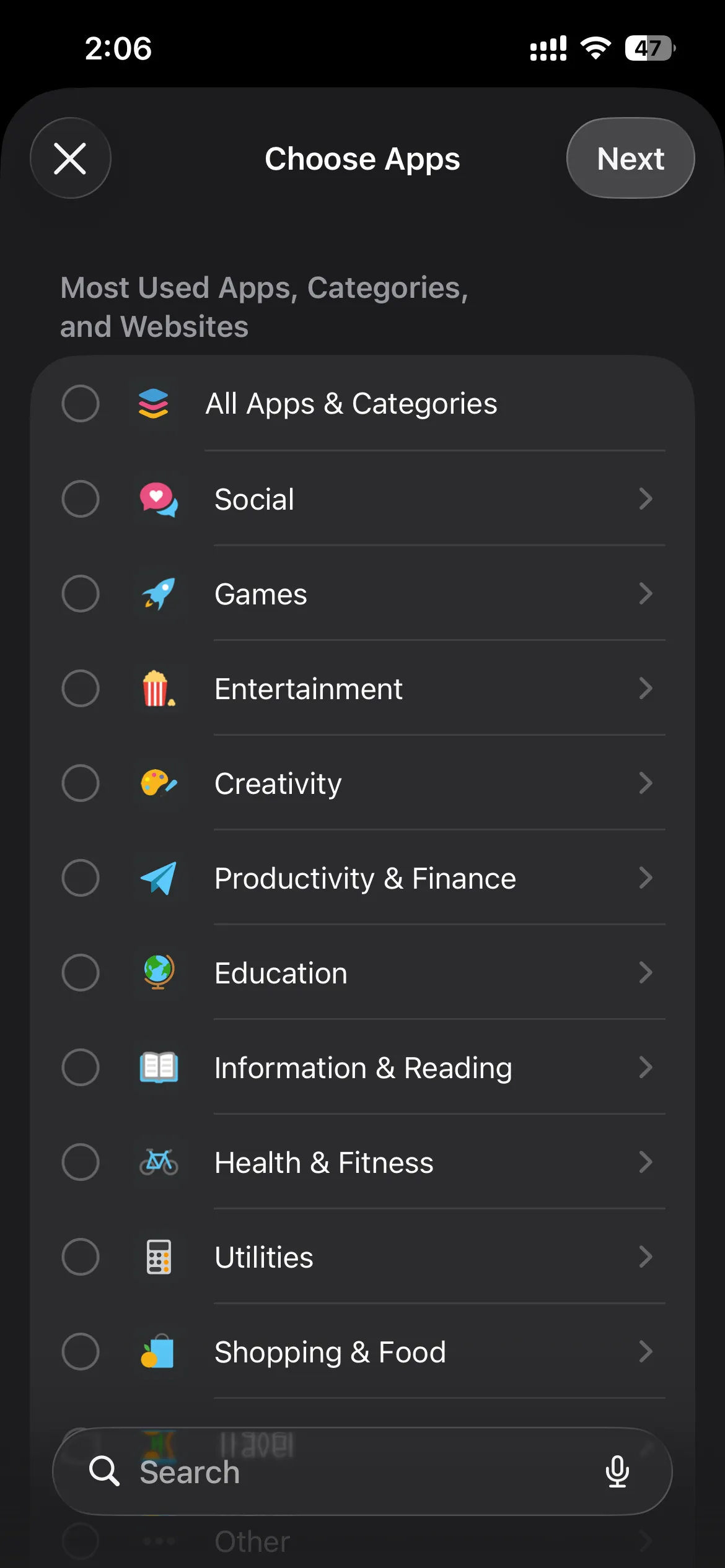
Once the daily limit is reached, all apps within that category will be grayed out on your home screen and require a tap to unlock.
How to block apps on iPhone during specific times automatically
App Limits restrict the total amount of time you spend, but what if you want to block apps during a specific window, such as between 9 AM and 5 PM? For this, you need to use Apple's Downtime feature.
Using Downtime for scheduled restrictions
Downtime allows you to create a daily schedule where your phone is essentially locked down, and only apps you explicitly allow can be opened.
- Go to Settings > Screen Time > Downtime.
- Turn on Scheduled.
- Set your From and To times. You can customize this so it only applies on weekdays.
- To ensure you can still use essential apps (like Phone, Messages, or Maps), go back to the main Screen Time menu, tap Always Allowed, and add your critical apps to the list.
How to block gaming apps on a family iPhone
If you are managing a family device, you can use these same Screen Time settings remotely. By setting up Apple's Family Sharing, you can configure App Limits and Downtime for your child's device directly from your own iPhone.
Just ensure you set a Screen Time Passcode that only you know, so the limits cannot be easily disabled on the family device.
The problem with built-in limits (The "Ignore Limit" button)
While Apple's built-in tools are great for basic management, they have a massive flaw if you are trying to break a doomscrolling habit: the "Ignore Limit" button.
When an App Limit or Downtime schedule kicks in, your iPhone presents a screen that says you have reached your limit. However, right at the bottom, there is a button that allows you to "Ignore Limit" for 15 minutes or for the rest of the day.
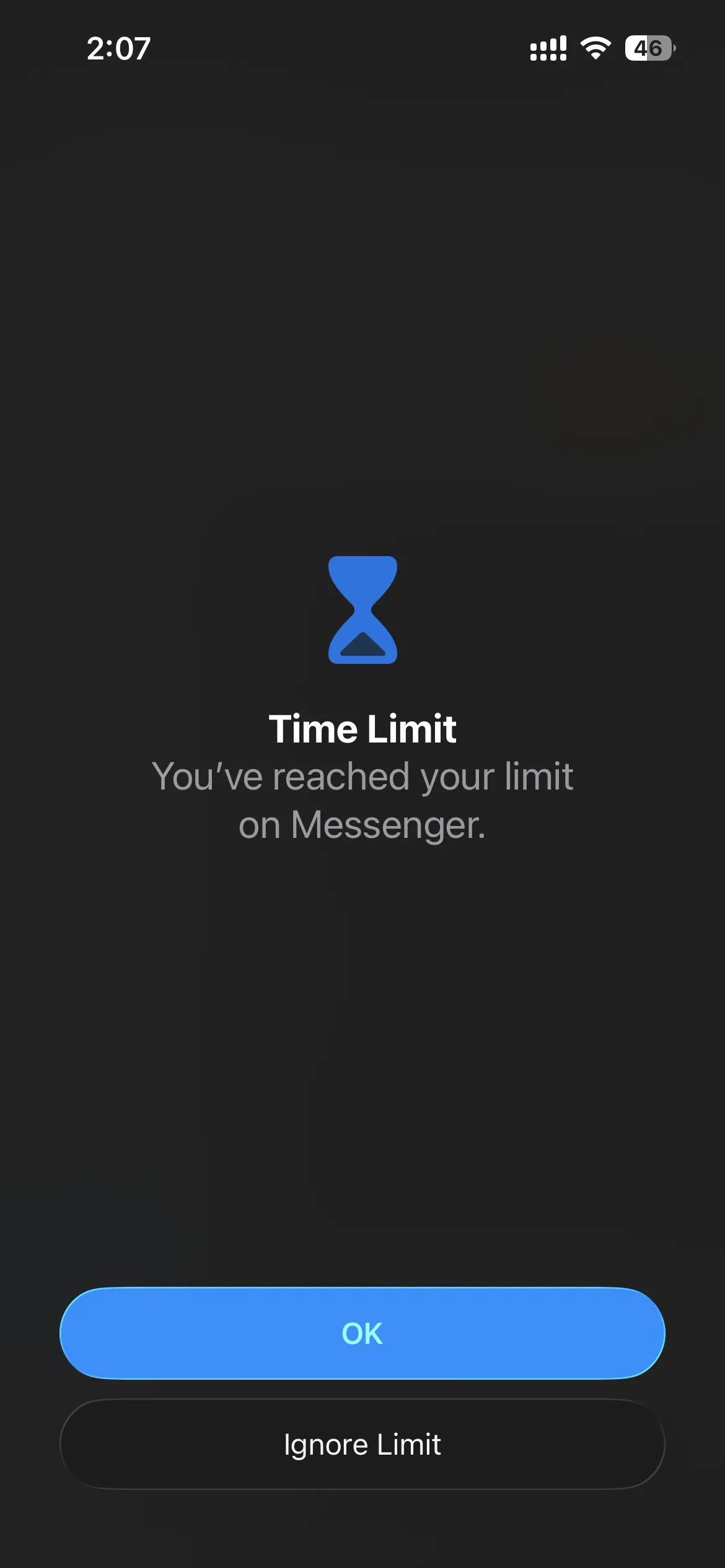
If your brain is seeking the dopamine hit of TikTok, Instagram, or a quick game, you will tap that button on autopilot. Because the friction is so low, standard screen time limits don't actually work to change behavior for adults.
A stricter way to schedule category blocks with Manaya
If you find yourself constantly bypassing your own limits, you need a tool designed with intentional friction. Manaya is a native iOS app blocker that uses Apple's official Screen Time API to block apps, but without the easy bypass button.
Using Protection Groups for specific categories
Instead of a generic limit, Manaya lets you create Protection Groups. You can create a group for "Social Media" and another for "Games." When setting up these groups, you can select entire categories to protect.
When you try to open an app in a protected group, Manaya does not just ask you nicely to stop. Depending on the plan you choose, it introduces strict friction:
- Wait: You must wait through a mandatory, unskippable timer before the app opens.
- Type to unlock: You must complete a typing challenge to prove you are making a conscious choice, not just acting on impulse.
- Strict Block: The app is entirely locked down, and the only way to disable it is to go through a paced deactivation task and type the word "DISABLE."
Setting Group Schedules (Always on vs specific times)
You can assign a different schedule to each Protection Group.
For example, you can set your "Games" group to a strict block during school or work hours. You can set your "Social Media" group to be Always on with a 10-second wait timer, meaning you can still check Instagram, but only if you are willing to wait 10 seconds every single time you open it.
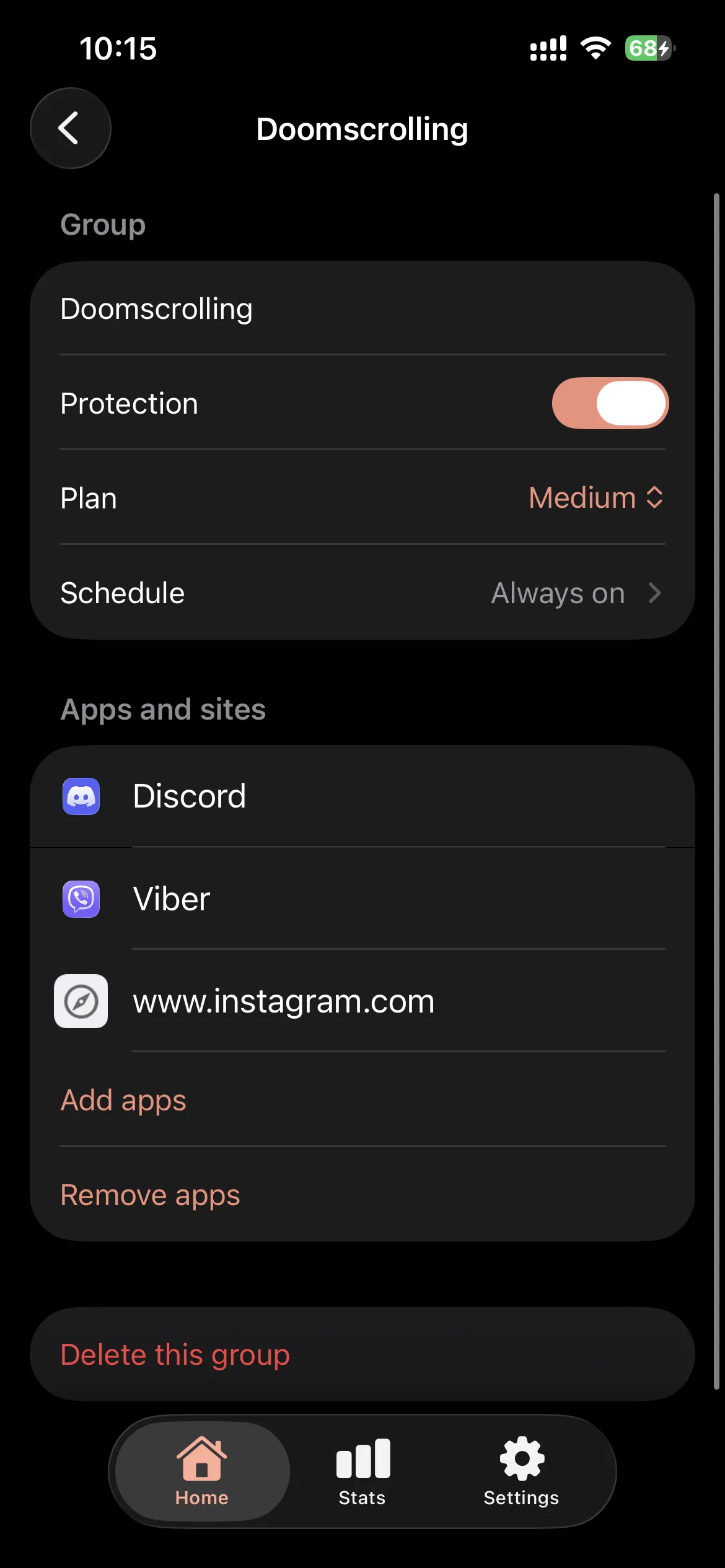
By replacing the easy "Ignore Limit" button with actual friction and strict schedules, Manaya trains your brain to stop opening distracting apps on autopilot.
Try Manaya today and take back control of your screen time.